
How can I improve capacity for large assemblies or drawings?
Please note that Windows allocates Virtual memory to an application. This is the Address Space available to any application. The size of this Address space is a function of the design of the operating system, not the physical memory installed on the system. More physical memory will increase performance, but not address space. Inventor, like any Windows application, is limited by the address space allocated to it by the Windows Operating System. Whatever the limit, Inventor users may run into it. A warning will be issued when you reach 80% of the available address space. It is advisable to save your work as soon as possible. When windows issues a message that a memory request has been denied, Inventor is no longer intact.At the 80% warning, exit Inventor saving your results. Restart Inventor and re-load your work. This removes memory allocations that are no longer needed because that work has been accomplished.
In a 32-bit computer (as Windows XP is) there is 4GB of memory address space.
2GB of this address space is reserved for the system. 2GB is reserved for the applications. When you add the /3GB switch to the boot.ini, it is taking 1GB of available address space reserved for the OS and giving it to the applications.
This can provide better performance for memory intensive programs like Inventor. However, there could be potential side-effects for the system of course. But nothing too much to worry about, or otherwise it would never be recommended. The boot.ini file is how you enable the option for the 3GB switch. It allows the 2GB that is dedicated to the system to give up 1GB and add it to the 2GB that is dedicated to the applications.
See the example boot.ini file below:
[boot loader]
timeout=5
default=multi(0)disk(0)rdisk(0)partition(1)\WINDOWS
[operating systems]
multi(0)disk(0)rdisk(0)partition(1)\WINDOWS="Microsoft Windows XP Professional" /fastdetect /NoExecute=OptIn
****Before changing your boot.ini file save a backup****
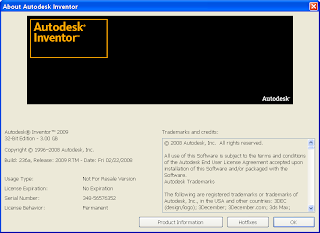
Follow the video on how to do this remember once you have made the change to your boot file you must restart your system. When your system reboots you will have a choice to select the 3 gig environment. Launch Inventor, go to the Help pull down menu and select about Autodesk Inventor to confirm Inventor has recognized the switch. Information provided from a AUGI Forum.
Check it out
http://screencast.com/t/Nefm3OT67
Submitted by Dave of the INCAT CAD Geeks


 Check out my video of how to do this.
 Check out my video of how to do this.


